
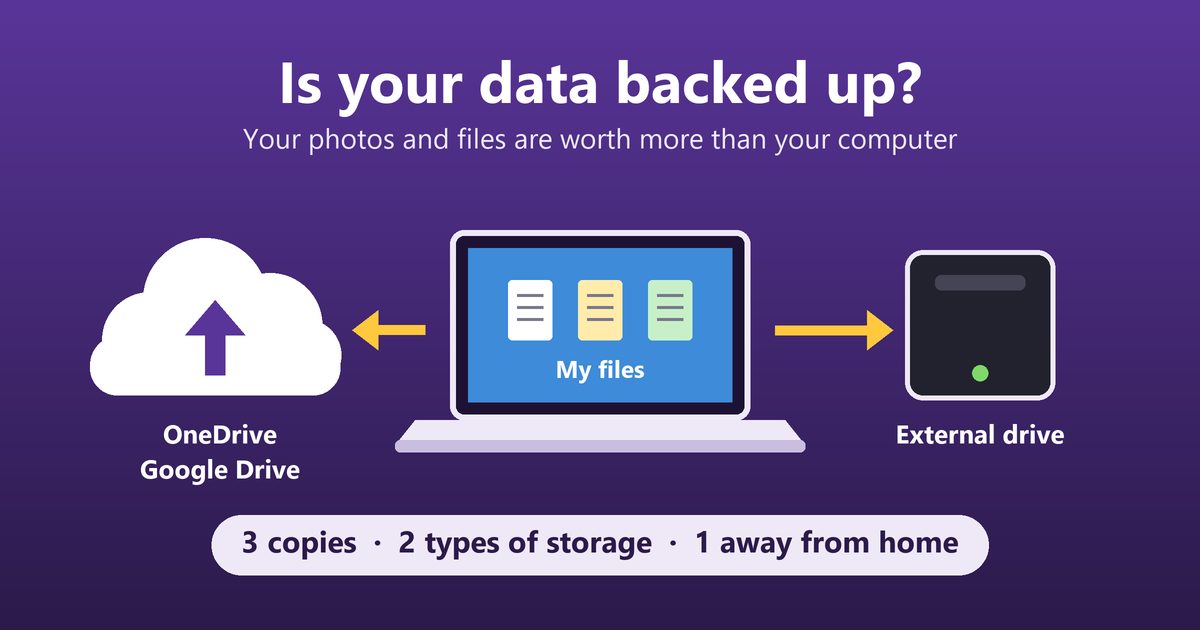
Your photos, documents, emails and business records may be the most valuable thing on your computer, worth far more than the computer itself. A computer can be replaced. Your grandchildren’s photos, your tax records and ten years of client files cannot. Yet most of the people who come to us in St Francis Bay and Humansdorp with a dead computer have no backup at all.
How data gets lost
It is rarely a question of if, only when. These are the things we see most often:
- Hard drive failure. All drives wear out eventually, often without warning.
- Power surges and outages. Load-shedding, lightning and sudden power cuts can damage a computer and corrupt files.
- Theft, loss and accidents. A stolen laptop, a dropped drive or a cup of coffee over the keyboard.
- Ransomware and viruses. Criminals lock your files and demand money to unlock them, with no guarantee they will.
- Human error. Deleting the wrong folder or saving over an important document.
With a good backup, every one of these is an inconvenience rather than a disaster.
Option 1: Back up to the cloud with OneDrive or Google Drive
A cloud backup keeps a copy of your files on secure servers on the internet. If your computer is stolen or destroyed, your files are still safe, and you can open them from any other computer, tablet or phone.
- Microsoft OneDrive is built into Windows. Its folder backup protects your Desktop, Documents and Pictures folders automatically. You get 5 GB free, and a Microsoft 365 subscription includes 1 TB, which is enough for most homes.
- Google Drive gives you 15 GB free, shared with your Gmail and Google Photos. The free Google Drive for desktop app can back up the folders on your computer, and more storage is available through a Google One plan.
The good: once it is set up, it works automatically in the background, and your files are kept safely away from your home or office.
Keep in mind: the first backup can take a while on a slow connection, and large collections may need a paid plan. Also, OneDrive and Google Drive sync your files. If you delete a file on your computer, it is deleted in the cloud too. Both keep deleted files in a recycle bin or trash for about 30 days, so act quickly if you delete something by mistake.
Option 2: Back up to an external drive
An external hard drive or SSD plugs into a USB port and holds a complete copy of your files. A 1 TB or 2 TB drive is affordable and can store years of photos and documents.
- On Windows, File History backs up your files to the drive and lets you go back to earlier versions of a document.
- On a Mac, Time Machine does the same.
The good: it is fast, needs no internet connection and has no monthly fees, and restoring a lot of files is quick.
Keep in mind: the drive is usually kept in the same place as the computer, so a fire, burglary or power surge can take both. Unplug the drive after each backup, so that ransomware cannot reach it, and keep it somewhere safe.
The best answer: use both
IT professionals follow the 3-2-1 rule:
- 3 copies of your important files: the original and two backups
- 2 different types of storage, for example the cloud and an external drive
- 1 copy kept away from your home or office, which the cloud takes care of
For most homes and small businesses, that simply means OneDrive or Google Drive running automatically, plus an external drive that you plug in once a week or once a month.
Simple habits that make the difference
- Make it automatic. A backup you have to remember is a backup that does not happen.
- Test it. Every few months, try to open a file from your backup. A backup is only worth something if you can restore from it.
- Don’t forget your phone. Turn on Google Photos or iCloud for your photos, and switch on WhatsApp’s chat backup.
- Back up before any big change, such as a Windows upgrade or moving to a new computer.
We can help
Not sure whether your files are backed up, or where to start? Ana Maria, known in St Francis Bay and Humansdorp as The Computer Lady, will check what you have, set up OneDrive, Google Drive or an external drive for you, and show you how to get your files back if you ever need to.
Please contact Ana Maria or Carlos at info@racomp.co.za or +27 83 225 8563.
References
- Microsoft: Back up your folders with OneDrive
- Microsoft: Restore files deleted from your OneDrive
- Microsoft: Backup and restore with File History
- Google: Use Google Drive for desktop
- Google: Recover a deleted file in Google Drive
- Google: Google One storage plans
- Backblaze: The 3-2-1 backup strategy
- CISA: Stop Ransomware
Leave a Reply