Author: Hay Ana Maria

  • Outages, cyber attacks and rumours: what really happened

    Outages, cyber attacks and rumours: what really happened

    The last few weeks have been unsettling. Outlook stopped working for many people worldwide, every flight in America was grounded for an afternoon, supermarket freezers in Europe were hacked, and a viral message warned that the whole internet would “go dark” on 17 November. Several of you have phoned us to ask whether your computer is safe. Here is what actually happened, what was only a rumour, and the few sensible things worth doing.

    The outages: mistakes, not hackers

    The biggest disruptions this season were not caused by criminals. They were caused by ordinary technical mistakes at very large companies, which then spread to millions of people.

    • Microsoft 365, 12 and 13 November. Outlook email went down for users in more than 70 countries, and Teams and Copilot were also disrupted. Mail was delayed for many hours, and some customers waited until 14 November for everything to work again. Microsoft said the problem came from an earlier network upgrade that went wrong after a later change, and that it was “not related to cyber”. In other words, an update went wrong.
    • American air traffic control, 13 November. The US Federal Aviation Administration (FAA) stopped all flights across the country for over four hours, and thousands of flights were cancelled. The cause was a single new router, installed during an upgrade from copper cables to fibre, which flooded the air traffic control network with data. It was not a hack.
    • Google Cloud in London, 20 October. A data centre lost mains power and its backup generators did not start, because of a setting in the equipment that controls them. For about six hours, services used by UK banks such as Lloyds, HSBC and Revolut, as well as Royal Mail, were disrupted.

    Why does one mistake affect so many people? Much of the world now relies on a handful of giant providers such as Microsoft, Google and Amazon. That is usually very reliable, but when one of them has a bad day, banks, airlines and email around the world feel it at the same time.

    The cyber attacks: real, but mostly aimed at businesses

    • Supermarket freezers in Europe. On 12 October, hackers attacked the refrigeration systems of major French retailers, and hundreds of stores had to throw food away. On 2 November it happened again in at least eight countries, from Sweden to Portugal. Freezers were switched into defrost mode, and some were set as high as 50°C. The affected stores used remotely managed refrigeration controls. Nobody has claimed responsibility, and investigators have not said who was behind it. The EU called it “a deliberate attempt to disrupt our food supply chain”.
    • South African organisations. Closer to home, a ransomware group attacked Statistics South Africa and the Gauteng Provincial Government earlier this year, claiming to have stolen over 450,000 files. Stats SA refused to pay. In May, criminals broke into Canvas, an online learning platform used by Wits University and many schools. In September, the Daily Maverick reported incidents at Hungry Lion, Bidvest Bank, CarTrack and Toyota South Africa, among others.

    Attacks like these target companies, governments and their systems. The risk for most households is different: your details may be stolen in a company’s breach and then used in scam emails, SMSes and phone calls aimed at you.

    The rumour: the internet did not shut down on 17 November

    A message spread on TikTok, WhatsApp and Facebook claiming that the internet and banking systems would be shut down worldwide on 17 November, with some versions promising three months of darkness and a “reset” of bank accounts. There was never any evidence for it. Fact-checkers traced it partly to a routine test of the American emergency alert system, which was held that day and only interrupted TV and radio in the USA, and partly to an episode of The Simpsons. The day came and went without any global outage.

    Rumours like this do real harm. They frighten people into withdrawing cash or panic-buying, and scammers use the fear to make their stories more convincing.

    What this means for you

    • Don’t panic, and check before you share. If a message predicts a disaster, look for it on a trusted news website first. If it only exists in forwarded messages, it is almost certainly false.
    • If something stops working, it may not be your computer. When email or a website suddenly fails, wait a while and ask someone else whether theirs works too. Please don’t reset or reinstall your computer because of an outage elsewhere.
    • Beware of “help” during an outage. Scammers phone or email pretending to be Microsoft, your bank or your internet provider, offering to “fix” the problem. Never let a caller take control of your computer, and never give anyone your OTP or PIN. Our post on scam emails and phone calls explains the warning signs.
    • Back up your photos and documents. Keep at least one copy that is not in the cloud, such as an external drive. If a service goes down, or your computer is hit by ransomware, you still have your files. See our post on backing up your data.
    • Keep important numbers on paper. Write down your bank’s fraud line, your doctor and your family’s numbers, in case your phone or email is unavailable.
    • Have a little cash and a second way to pay. Card machines sometimes fail during outages, and we are used to load shedding here. There is no need to withdraw your savings.
    • Keep your devices up to date, use strong, different passwords, and turn on two-step verification for your email and banking.
    • If you run a small business, make sure any equipment that can be controlled over the internet, such as cameras, alarms, fridges or point-of-sale systems, has had its default password changed and its updates installed.

    We can help

    Worried about something you have read or been sent? Ana Maria, known in St Francis Bay and Humansdorp as The Computer Lady, can check whether your computer is safe, set up backups, secure your email and accounts, and help your business protect its systems. We are always happy to answer the question “is this real?”

    Please contact Ana Maria or Carlos at info@racomp.co.za or +27 83 225 8563.

    References

  • Replace your old Windows with ChromeOS Flex

    Replace your old Windows with ChromeOS Flex

    Is your computer still running Windows 10, or an even older version of Windows? If so, it is time to act.

    Why you need to update

    Microsoft stopped supporting Windows 10 in October 2025. Computers that are enrolled in Microsoft’s Extended Security Updates programme still receive security fixes until October 2027, but nothing else. Older versions such as Windows 7 and 8 have had no protection for years.

    An unsupported computer still switches on and seems to work. Yet every month new security holes are found that will never be fixed on it. That leaves your email, banking and personal files exposed to viruses, ransomware and scams.

    The best option is to upgrade to Windows 11. If your computer can run it, the upgrade is usually free.

    What if my computer can’t run Windows 11?

    Many computers that are only a few years old cannot run Windows 11, because Microsoft requires newer processors and security chips. That does not mean you need to buy a new computer.

    ChromeOS Flex is a free operating system from Google that installs in place of Windows and gives older computers a new life. It is:

    • Free: there is nothing to buy and no subscription.
    • Secure: it updates itself automatically in the background and is far less exposed to viruses than old Windows.
    • Easy to use: it starts quickly and is simple to find your way around.
    • Light: it runs well on computers that have become slow on Windows.

    It does everything most people need

    • Internet: the Google Chrome browser is built in.
    • Email: use Gmail, Outlook.com or your existing email account through the browser.
    • Documents and spreadsheets: Google Docs and Google Sheets replace Word and Excel, and they open and save Word and Excel files.
    • Games and hobbies: play bridge online with sites such as Bridge Base Online, and enjoy most other online games.
    • Video calls, photos and streaming: these work through the browser.

    Good to know before you switch

    • Back up your files first. Installing ChromeOS Flex erases everything on the computer.
    • Windows programs will not run on it. If you rely on special software, such as accounting packages, check first whether there is an online version.
    • Your computer needs at least 4 GB of memory and a 64-bit Intel or AMD processor. Most computers from the last ten years qualify, and Google publishes a list of tested models.
    • You will need a Google account, which is free.

    We can help

    Not sure whether your computer can run Windows 11, or whether ChromeOS Flex is right for you? We will check your computer, back up your files, and do the upgrade or installation for you.

    Please contact Ana Maria or Carlos at info@racomp.co.za or +27 83 225 8563.

    References

  • Back up your data before it’s too late

    Back up your data before it’s too late

    Your photos, documents, emails and business records may be the most valuable thing on your computer, worth far more than the computer itself. A computer can be replaced. Your grandchildren’s photos, your tax records and ten years of client files cannot. Yet most of the people who come to us in St Francis Bay and Humansdorp with a dead computer have no backup at all.

    How data gets lost

    It is rarely a question of if, only when. These are the things we see most often:

    • Hard drive failure. All drives wear out eventually, often without warning.
    • Power surges and outages. Load-shedding, lightning and sudden power cuts can damage a computer and corrupt files.
    • Theft, loss and accidents. A stolen laptop, a dropped drive or a cup of coffee over the keyboard.
    • Ransomware and viruses. Criminals lock your files and demand money to unlock them, with no guarantee they will.
    • Human error. Deleting the wrong folder or saving over an important document.

    With a good backup, every one of these is an inconvenience rather than a disaster.

    Option 1: Back up to the cloud with OneDrive or Google Drive

    A cloud backup keeps a copy of your files on secure servers on the internet. If your computer is stolen or destroyed, your files are still safe, and you can open them from any other computer, tablet or phone.

    • Microsoft OneDrive is built into Windows. Its folder backup protects your Desktop, Documents and Pictures folders automatically. You get 5 GB free, and a Microsoft 365 subscription includes 1 TB, which is enough for most homes.
    • Google Drive gives you 15 GB free, shared with your Gmail and Google Photos. The free Google Drive for desktop app can back up the folders on your computer, and more storage is available through a Google One plan.

    The good: once it is set up, it works automatically in the background, and your files are kept safely away from your home or office.

    Keep in mind: the first backup can take a while on a slow connection, and large collections may need a paid plan. Also, OneDrive and Google Drive sync your files. If you delete a file on your computer, it is deleted in the cloud too. Both keep deleted files in a recycle bin or trash for about 30 days, so act quickly if you delete something by mistake.

    Option 2: Back up to an external drive

    An external hard drive or SSD plugs into a USB port and holds a complete copy of your files. A 1 TB or 2 TB drive is affordable and can store years of photos and documents.

    • On Windows, File History backs up your files to the drive and lets you go back to earlier versions of a document.
    • On a Mac, Time Machine does the same.

    The good: it is fast, needs no internet connection and has no monthly fees, and restoring a lot of files is quick.

    Keep in mind: the drive is usually kept in the same place as the computer, so a fire, burglary or power surge can take both. Unplug the drive after each backup, so that ransomware cannot reach it, and keep it somewhere safe.

    The best answer: use both

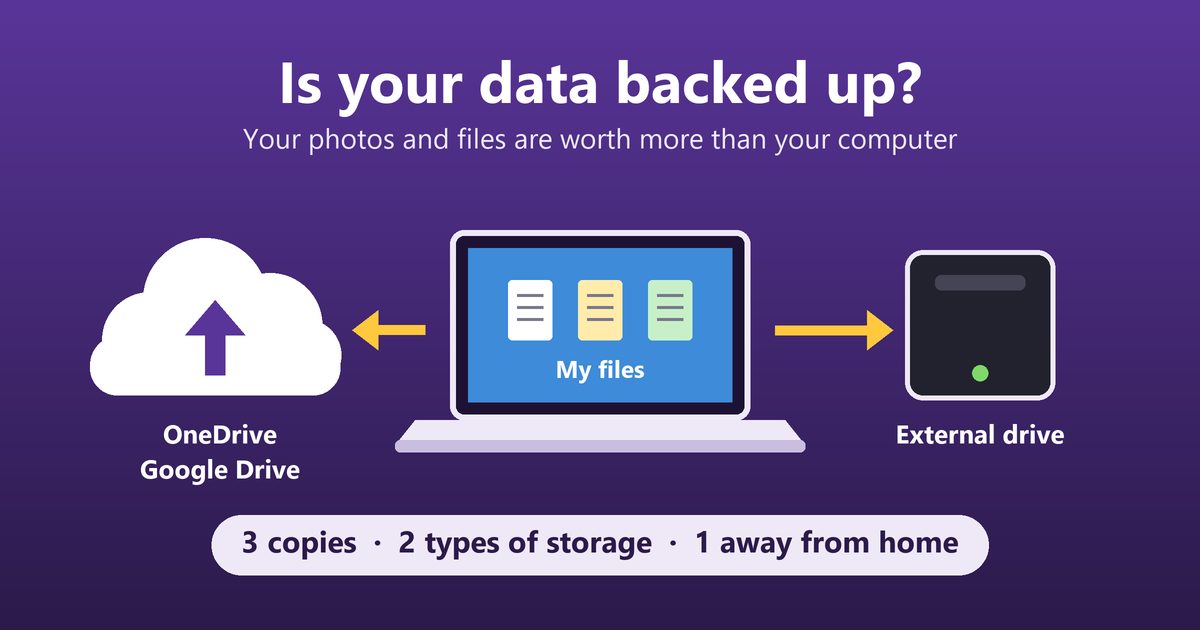
    IT professionals follow the 3-2-1 rule:

    • 3 copies of your important files: the original and two backups
    • 2 different types of storage, for example the cloud and an external drive
    • 1 copy kept away from your home or office, which the cloud takes care of

    For most homes and small businesses, that simply means OneDrive or Google Drive running automatically, plus an external drive that you plug in once a week or once a month.

    Simple habits that make the difference

    • Make it automatic. A backup you have to remember is a backup that does not happen.
    • Test it. Every few months, try to open a file from your backup. A backup is only worth something if you can restore from it.
    • Don’t forget your phone. Turn on Google Photos or iCloud for your photos, and switch on WhatsApp’s chat backup.
    • Back up before any big change, such as a Windows upgrade or moving to a new computer.

    We can help

    Not sure whether your files are backed up, or where to start? Ana Maria, known in St Francis Bay and Humansdorp as The Computer Lady, will check what you have, set up OneDrive, Google Drive or an external drive for you, and show you how to get your files back if you ever need to.

    Please contact Ana Maria or Carlos at info@racomp.co.za or +27 83 225 8563.

    References

  • Scam emails and phone calls: how to protect yourself and your family

    Scam emails and phone calls: how to protect yourself and your family

    Almost every week someone in St Francis Bay or Humansdorp tells us about an email, SMS or phone call that seemed perfectly genuine: the bank, SARS, SASSA, a courier, even “Microsoft”. Sadly, some of them only tell us after the money has gone. Scammers deliberately target older people, who tend to be polite, trusting and less familiar with how these tricks work. Please read this and share it with your parents, grandparents and neighbours.

    How big is the problem?

    According to SABRIC, the South African Banking Risk Information Centre, South Africans lost R2.4 billion to digital banking crime in 2025, up from about R1.9 billion in 2024. Most of it did not come from hackers breaking into banks. It came from criminals tricking people into handing over their details, passwords and one-time PINs (OTPs) themselves, through fake emails (phishing) and phone calls (vishing).

    Scams doing the rounds in South Africa

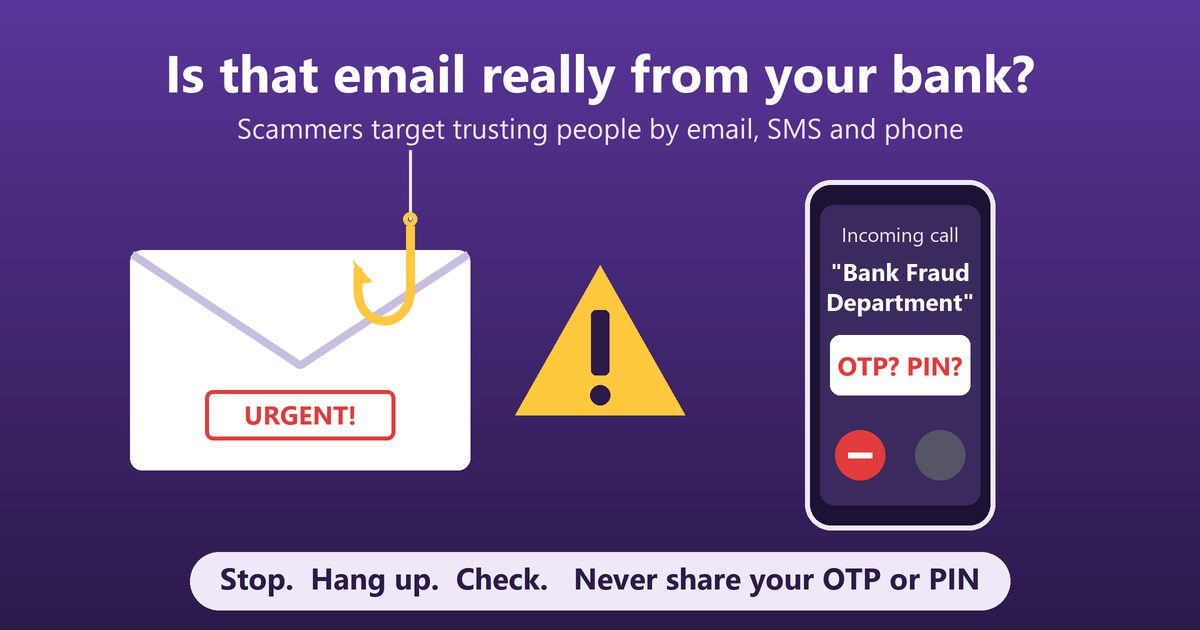
    • “Your bank’s fraud department” calls. A friendly, professional caller says there is suspicious activity on your account. To “stop” it, they need you to read back the OTP that has just been sent to your phone. That OTP is exactly what they need to empty your account.
    • Fake SARS emails and SMSes. “You are due a tax refund, click here to verify your banking details”, or a threatening “outstanding tax” notice demanding urgent payment. SARS publishes a long list of current scam examples on its website, including fake High Court summonses and a WhatsApp profile pretending to be the SARS Commissioner.
    • SASSA and pension messages. SMSes and WhatsApp messages telling grant beneficiaries to “re-register”, “verify” their grant or send their ID number and PIN, or they will lose their payment. SASSA has repeatedly warned that these messages are fake.
    • Parcel and delivery fees. An SMS or email says a parcel is waiting and asks you to pay a small “customs” or “delivery” fee through a link. The real aim is your card details.
    • “Hi Mom, this is my new number.” A WhatsApp message from an unknown number claiming to be your child or grandchild who has lost their phone, followed by an urgent request for money.
    • “Microsoft” calls about your computer. The caller says your computer has a virus and asks you to install a program so they can “fix” it. Once they have remote control, they can watch you log in to your bank.
    • Romance scams (catfishing). Someone you meet on Facebook or a dating site, often a widower, an engineer working overseas or a soldier, builds a warm friendship over weeks or months. Then comes an emergency, and a request for money.

    The warning signs

    • Urgency or fear: “your account will be closed today”, “you will be arrested”, “act now”.
    • A request for your OTP, PIN, password or card number. No genuine bank, SARS or SASSA employee will ever ask for these.
    • A link to “verify”, “update” or “unlock” something.
    • An email address that doesn’t quite match, such as a Gmail address for “SARS”, or a bank name with a spelling mistake.
    • A request to keep it secret, or not to tell your bank or family.
    • Payment by gift cards, vouchers or an instant transfer to a personal account.
    • Something that seems too good to be true: a prize, an inheritance, a refund you weren’t expecting.

    Stop. Hang up. Check.

    • Never share an OTP with anyone, not even someone who says they are from your bank. Your bank already knows its own OTPs.
    • Don’t click links in unexpected emails or SMSes. Type the website address yourself, or use your bank’s official app.
    • If someone calls you, hang up. Then phone your bank on the number on the back of your card. A real bank won’t mind.
    • Never let a caller install anything on your computer, or take control of it remotely.
    • Check with family before sending money, especially when the request is urgent. Phone your child or grandchild on their old number.
    • Keep your computer and phone up to date, so that known security holes are closed.
    • It is not rude to be careful. Scammers rely on good manners. You can always say “I’ll call you back”.

    If you think you’ve been caught

    • Phone your bank immediately on the number on the back of your card, and ask them to block your cards and online banking. Every minute counts.
    • Change your passwords, starting with your email and banking.
    • Report it at your local police station and get a case number. SARS-related scams can be reported to the SARS Fraud and Anti-Corruption Hotline on 0800 00 2870.
    • Don’t be embarrassed. These criminals are professionals, and they catch clever, educated people every day. Telling someone quickly is what matters.

    We can help

    Not sure whether an email or message is genuine? Worried that someone has had access to your computer? Ana Maria, known in St Francis Bay and Humansdorp as The Computer Lady, can check your computer for anything harmful, help you secure your email and accounts, and show you and your family how to spot a scam.

    Please contact Ana Maria or Carlos at info@racomp.co.za or +27 83 225 8563.

    References

  • Quantum computers and your data: getting ready for post-quantum encryption

    Quantum computers and your data: getting ready for post-quantum encryption

    Every time you see the little padlock in your browser, log in to your banking app or send a WhatsApp message, encryption is quietly protecting you. It scrambles your information so that only the right person can read it. Within the next decade or so, a new kind of machine, the quantum computer, is expected to become powerful enough to break much of the encryption we rely on today. The good news is that the replacement already exists. The move to it is called post-quantum migration, and it has already begun.

    What is the problem?

    Ordinary computers would need millions of years to crack the encryption that protects websites, online banking, email and digital signatures. Quantum computers work in a completely different way. For certain mathematical problems, including the ones behind today’s most common encryption methods (known as RSA and elliptic-curve cryptography), a large enough quantum computer could find the answer in hours or days.

    Security experts call the day this becomes possible “Q-Day”. Not everything is at risk in the same way. The encryption used to lock files and disks (such as AES) stays strong with longer keys. What needs replacing is the encryption used to set up secure connections and to prove who you are online.

    When is it likely to become a reality?

    Nobody knows exactly, but the estimates keep getting closer:

    • In the Global Risk Institute’s 2025 survey of quantum experts, a quantum computer able to break today’s encryption was rated quite possible within 10 years (an average estimate of 28 to 49 percent) and likely within 15 years.
    • In 2025, a Google researcher estimated that the most common type of website encryption (2048-bit RSA) could be broken in under a week with fewer than a million quantum bits (qubits). That is about 20 times fewer than his estimate from 2019. Today’s quantum computers are still far smaller and make too many errors, but the target is moving closer.
    • Governments are planning on this basis. In the United States, NIST’s final transition guidance (October 2026) says the current methods will be phased out after 2030 and no longer allowed after 2035. The UK’s National Cyber Security Centre has set the same 2035 deadline for completing the move.

    Why act now if it is years away?

    There are two reasons.

    • “Harvest now, decrypt later.” Criminals and foreign intelligence services can copy encrypted information today and simply store it until a quantum computer can unlock it. Anything that must stay private for many years is already at risk: medical records, legal documents, financial and business secrets.
    • Changes like this take a long time. NIST points out that earlier encryption changes took 10 to 20 years, because encryption is built into software, hardware, certificates and connections everywhere.

    The solution already exists

    In August 2024, NIST published the first three post-quantum encryption standards (known as ML-KEM, ML-DSA and SLH-DSA). They are based on mathematical problems that quantum computers are not expected to be able to solve. In March 2025, NIST chose a fifth algorithm, HQC, as a back-up built on different mathematics, in case a weakness is ever found in the main one.

    Much of this is already in use. Current versions of Chrome, Edge and Firefox use post-quantum key exchange when the website supports it, and messaging apps such as Signal and Apple’s iMessage have added post-quantum protection. If your devices and apps are up to date, you may already be using post-quantum encryption without knowing it.

    How to prepare at home

    • Keep everything updated. Post-quantum protection arrives through ordinary updates to Windows, macOS, ChromeOS, Android, iOS, your browser and your apps. This is the single most important step.
    • Replace devices that no longer get updates. An old computer, phone or router that is out of support will never receive the new encryption. (See our article on replacing old Windows with ChromeOS Flex.)
    • Be wary of “quantum-proof” sales pitches. You do not need to buy any special product. Anyone selling you “quantum protection” by email or phone is most likely a scammer.

    How to prepare in a business

    The UK’s National Cyber Security Centre suggests a simple three-step timeline that suits businesses of any size:

    1. By 2028: find out where you use encryption. Your website and its certificate, email, remote access and VPNs, online banking, accounting and business software, backups, and any equipment that connects to the internet. Ask each supplier what their post-quantum plans are.
    2. By 2031: upgrade the most important systems first, especially anything holding information that must stay confidential for years.
    3. By 2035: complete the move for everything else.

    When you buy new software or equipment, ask whether it supports the new NIST standards and whether its encryption can be updated easily in future. Experts call this being “crypto-agile”.

    In South Africa there is not yet a national programme to prepare government and industry, so for now businesses here need to take the lead themselves and follow the international timelines.

    We can help

    There is no need to panic, but there is good reason to plan. Ana Maria, known in St Francis Bay and Humansdorp as The Computer Lady, can check that your computers and devices are up to date and still supported, help you list where your business relies on encryption, and talk to your software suppliers about their plans.

    Please contact Ana Maria or Carlos at info@racomp.co.za or +27 83 225 8563.

    References

  • How AI can make life easier: a practical guide for older South Africans

    How AI can make life easier: a practical guide for older South Africans

    You have probably heard people talking about “AI” or ChatGPT, and perhaps wondered whether it is something for you. It is. Used sensibly, an AI assistant is like having a patient, knowledgeable friend in your phone who never minds being asked the same question twice. Here is how it can make everyday life in South Africa simpler, what to use it for, and what to be careful about.

    What is an AI assistant?

    An AI assistant is a program you can talk to in ordinary language, by typing or by speaking. You ask a question or describe what you need, and it answers in plain words. The best-known ones all have free versions that work in South Africa:

    • Meta AI, built into WhatsApp. If you see a blue-and-purple circle in WhatsApp, you already have it. It is the easiest place to start because you already know how WhatsApp works.
    • Google Gemini, on Android phones and in the Google app. It understands Afrikaans and isiZulu as well as English.
    • ChatGPT, Microsoft Copilot and Claude, as free apps or on their websites.

    Most of them let you tap a microphone and simply speak, and many can read their answers aloud, which is very helpful if your eyesight or typing is not what it used to be.

    Ten ways AI can simplify your life

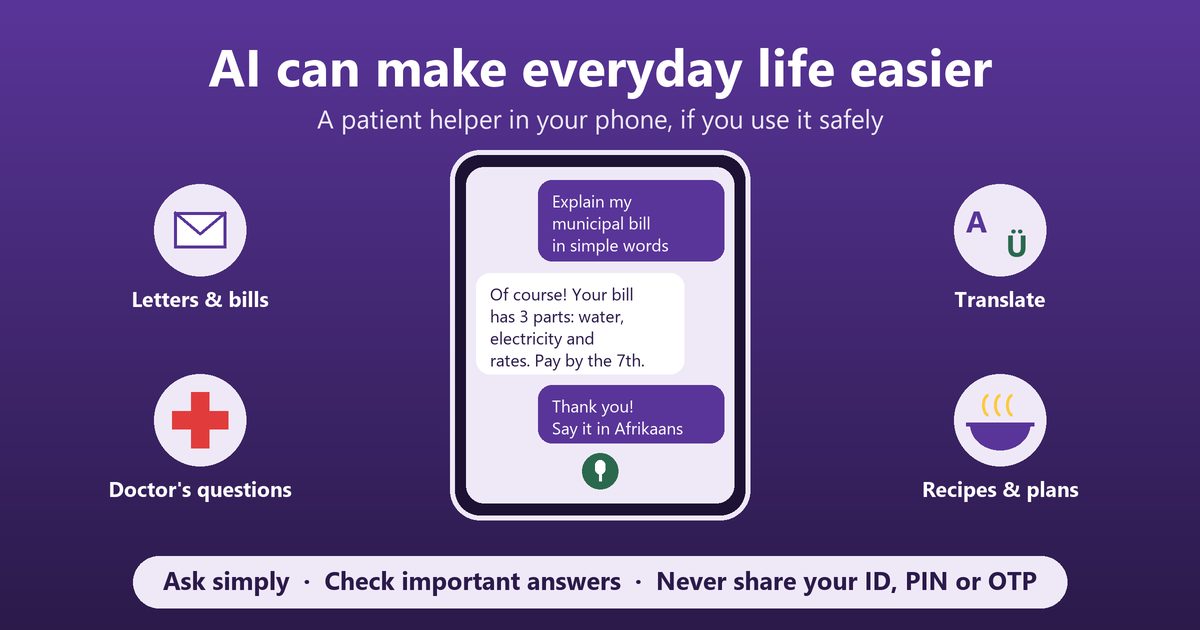
    1. Understand confusing letters. A municipal account, a medical aid statement, an insurance policy or a letter from SARS. Ask: “Explain this to me in simple words. What do I need to do, and by when?” (Cover or leave out your ID and account numbers first. See the safety rules below.)
    2. Write difficult letters and emails. A complaint about a wrong electricity bill, a query to your medical aid, or a polite letter to the body corporate. Tell it what happened, and it will draft a clear, polite letter for you to check and send.
    3. Prepare for the doctor. Ask it to explain a diagnosis or medical term in plain language, or to help you write down questions for your next appointment. Use it to understand, not to diagnose. Your doctor and pharmacist have the final word.
    4. Read small print. Take a photo of a medicine box, a menu or an appliance label and ask the assistant to read it to you or make it bigger. The free Be My Eyes app does this especially well for people with poor eyesight.
    5. Translate. Talk to a carer, a builder or a neighbour in Afrikaans, isiZulu or another language, or understand a message from a grandchild who is learning isiXhosa at school.
    6. Get help with technology. “How do I send a photo on WhatsApp?” or “How do I make the text on my phone bigger?” It will explain step by step, as slowly as you like.
    7. Plan meals and budgets. “I have chicken, butternut and rice. What can I make for two?” Or ask it to help you set up a simple monthly budget for rising electricity and food costs.
    8. Organise your days. Make a medication timetable, a packing list for a visit to the children in Cape Town or Johannesburg, or a checklist of things to sort out before you go away.
    9. Keep your mind active. Ask for a quiz, a crossword clue, bridge tips, the history of St Francis Bay, gardening advice for the coastal Eastern Cape, or help researching your family history.
    10. Check whether a message is a scam. Copy a suspicious SMS or email (without clicking any links) and ask: “Does this look like a scam?” It is a useful second opinion, but if in doubt, still phone your bank on the number on your card.

    How to ask good questions

    • Talk to it like a person. Give some background: “I’m 78 and not very good with computers. Please explain simply.”
    • Ask for what you want: shorter, simpler, bigger steps, or in Afrikaans.
    • Ask follow-up questions. If something is not clear, say so. It will not lose patience.

    Important safety rules

    • Never share your ID number, bank details, PINs, passwords or OTPs with an AI assistant. What you type may be stored and read by the company that runs it.
    • AI can be confidently wrong. It sometimes makes up facts that sound completely believable. Always check anything important about your health, money or legal matters with a real professional.
    • Don’t let AI make money decisions for you. Adverts for “AI trading” apps or investments that promise guaranteed returns are scams. SABRIC, the banks’ crime information centre, warns that criminals now use AI to create fake banking apps, fake reviews and even fake videos of well-known people.
    • Beware of cloned voices. Criminals can now copy a person’s voice from a short recording and phone you pretending to be your child or grandchild in trouble. Agree on a family code word, and if a call asks for money, hang up and phone the person back on the number you know.
    • Only download apps from the official Google Play or Apple App Store, never from a link in a WhatsApp, SMS or email.
    • Use it as a helper, not a replacement for people. It is wonderful for answering questions, but it is no substitute for a visit, a phone call or a cup of tea with a friend.

    For more on staying safe, read our article on scam emails and phone calls.

    Helping a parent or friend get started

    Sit down together and start with just one assistant, ideally Meta AI in WhatsApp because it is already familiar. Try three real questions from their own life, such as a recipe, a letter they have been putting off, and a question about their phone. Show them the microphone button. Then write the safety rules above on a card next to the phone.

    We can help

    Would you like someone to set up an AI assistant on your phone, tablet or computer and show you how to use it safely? Ana Maria, known in St Francis Bay and Humansdorp as The Computer Lady, offers patient one-on-one help at your own pace, at home or in the office.

    Please contact Ana Maria or Carlos at info@racomp.co.za or +27 83 225 8563.

    References